After three months of ownership and more than 5,000 miles traveled, we’re ironing out our issues with the 2027 Bolt.
Annoying Hum
GM may have a fix for the Bolt’s annoying hum. We’ll find out mid month when the mystery part arrives at the local Chevy dealer.
ABRP Playing Better with Google
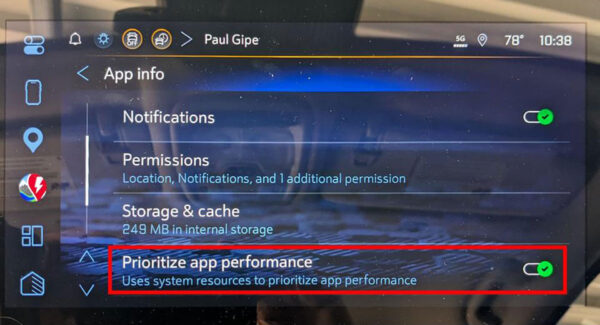
ABRP (A Better Routeplanner) was unstable and often would disappear from the apps available on the center console, requiring me to frequently “re-enable” the app. After a tip from the chevybolt.org forum, I went into settings, then onto Apps, and then the settings for ABRP. From there I paged down and told Google to “Prioritize app performance.” Since then ABRP has been stable.
Google Maps Not Finding Non-Tesla Stations
Another tip from the chevybolt.org forum suggested I didn’t have my filters set correctly. Indeed that was the case despite my best attempts to set all the various apps I use to work the way I prefer. Turns out the filters in question are not accessible from Google Maps’ “settings,” which is where I thought they would be. Silly me.
The 2027 Bolt uses NACS or the North American Charging Standard (the Tesla plug). Google Maps knows this and assumes that’s all you’re looking for, thus, the preference for Tesla charge stations.
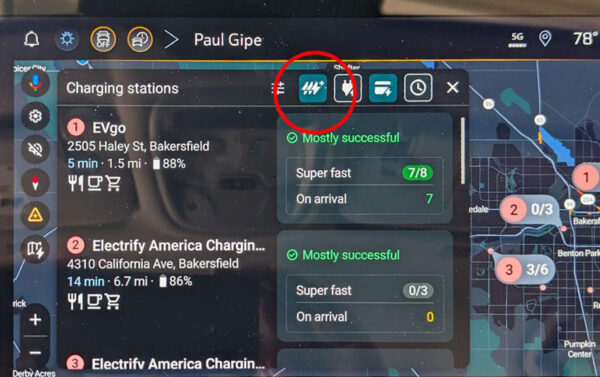
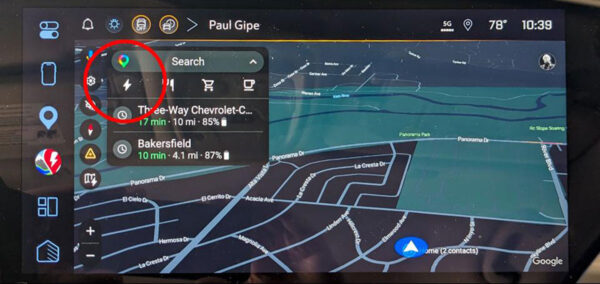
To find non-Tesla charge stations, you have to tell Google Maps you have the adapters for CCS1 and J1772. To do so, you open Google Maps. Click on the lightning symbol in the search bar. This takes you to “Charging stations.” Now click the “filter” symbol on the far left of the top row of symbols. (This may be a universal symbol for “filters” to those in the know, but it wasn’t to me.)
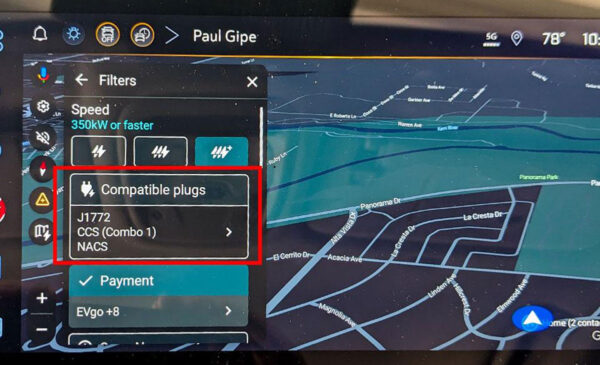
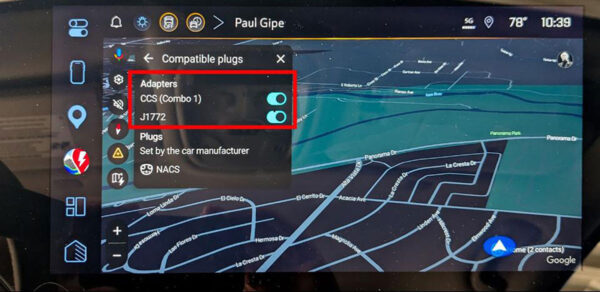
Go to “compatible plugs” and tell Google you have the adapters for CCS1 and J1772. Once this is done, Google Maps will show non-Tesla stations that use CCS1 for fast charging and J1772 for Level 2 charging.